
Comtarsia SignOn Agent for System Windows 7.0
Table of Contents
- 1. Overview
- 2. Installation
- 2.1 System requirements
- 2.2 Installing with the bundle installer
- 2.3 Installing from MSI
- 2.4 File system structure
- 2.5 Updating
- 2.6 Upgrading from SignOn Solutions 2012 and 2016
- 2.7 Uninstalling
- 3. Quick start
- 4. SignOn Proxy configuration
- 5. Web Management
- 6. General settings
- 7. User settings
- 8. Group mapping
- 9. Variables
- 9.1 Variables in the SignOn Agent
- 9.2 Source syntax
- 9.3 Variable fields
- 9.4 Regular expression flags
- 9.5 Export to the local account
- 10. Logging
- 11. Synchronization
- 12. Security Agent
- 13. Licensing
- 14. Disabling accounts from the SignOn Proxy
- 15. Recommendations
- 16. Troubleshooting
- 17. Disclaimer
Version: 7.0.0.1, October 2026
The Comtarsia SignOn Agent for System Windows (in this manual: the SignOn Agent) manages the local Windows accounts of the server it is installed on. It keeps them in line with the user accounts of your central directory (LDAP directory or Active Directory).
Main features:
- Creates a local account with the same name and password when a directory user logs on for the first time
- Keeps the password of the local account equal to the directory password
- Sets the membership in local groups according to the directory groups of the user (group mapping)
- Writes account attributes such as the full name, home folder or profile path
- Creates home and profile directories
- Disables and deletes accounts that have not been used for a configurable time (Security Agent)
Typical use: servers that are not members of a domain, e.g. terminal servers in a workgroup or servers in a DMZ, on which users log on with their directory account.
1. Overview
1.1 How it works
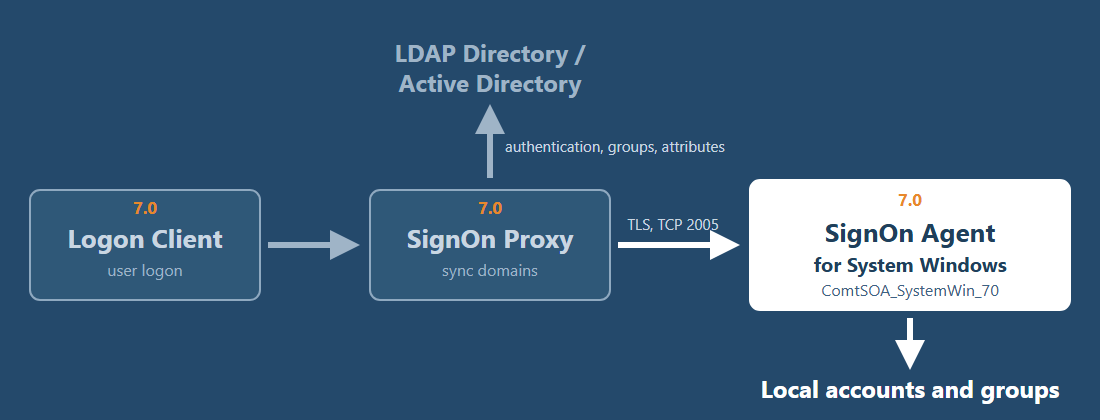
Logon Client ──► SignOn Proxy ──(TLS, TCP 2005)──► SignOn Agent for System Windows
                     │                                     │
          LDAP directory / Active Directory       local accounts and groups of the server
- A user logs on at a Comtarsia Logon Client with the directory user name and password.
- The SignOn Proxy authenticates the user against the directory and reads the user's groups and attributes.
- The SignOn Proxy sends a synchronization request to every sync domain that is configured for this user, among them the SignOn Agent for System Windows. The request contains the user name, the password, the directory groups and the variables configured for transmission.
- The SignOn Agent creates or updates the local account and returns the result (sync status) to the SignOn Proxy.
- The logon continues with the now up-to-date local account.
The SignOn Agent never connects to the directory itself. It receives all data from the SignOn Proxy.
1.2 Components
| Item | Value |
|---|---|
| Service | ComtSOA_SystemWin_70, display name Comtarsia SignOn Agent for System Windows 7.0 Service. Runs as LocalSystem, starts automatically, is restarted automatically after a failure. |
| Program | %ProgramFiles%\Comtarsia\SignOn Solutions 7.0\bin\ComtSOA_SystemWin.exe |
| Configuration | Registry HKEY_LOCAL_MACHINE\SOFTWARE\Comtarsia\SOSProfile 421 (profile SignOn Agent SystemWin in the Web Management) |
| Listener | TCP port 2005, TLS |
| License key | Product number 424. The active key is named in HKLM\SOFTWARE\Comtarsia\SignOn Solutions 7.0\LicenceKeys\424. |
| Event log | Windows Application log, source Comtarsia SignOn Agent for System Windows 7.0 |
| Management | Comtarsia Web Management, installed together with the SignOn Agent |
2. Installation
2.1 System requirements
- Windows Server 2016, 2019, 2022 or 2025, 64-bit.
- Member server or standalone (workgroup) server. The SignOn Agent is not supported on:
- Domain controllers. They have no local accounts, the SignOn Agent would create domain accounts there. For domain controllers, use the Comtarsia SignOn Agent for Active Directory.
- Workstations.
- Comtarsia SignOn Proxy 7.0.
- The bundle installer requires a Windows installation with a graphical user interface. On Windows Server Core, install from MSI.
- Password policy: The SignOn Agent sets the directory password as the password of the local account. Windows rejects passwords that do not meet the local password policy (minimum length, complexity, history), and the synchronization of such a user fails. Make sure that the local password policy of the server is not stricter than the policy of your directory.
- User names: Local account names can have at most 20 characters and must not contain any of the characters
" / \ [ ] : ; | = , + * ? < >. Directory users whose names do not meet these rules cannot be synchronized. - Network: The SignOn Proxy must be able to reach the server on TCP port 2005.
2.2 Installing with the bundle installer
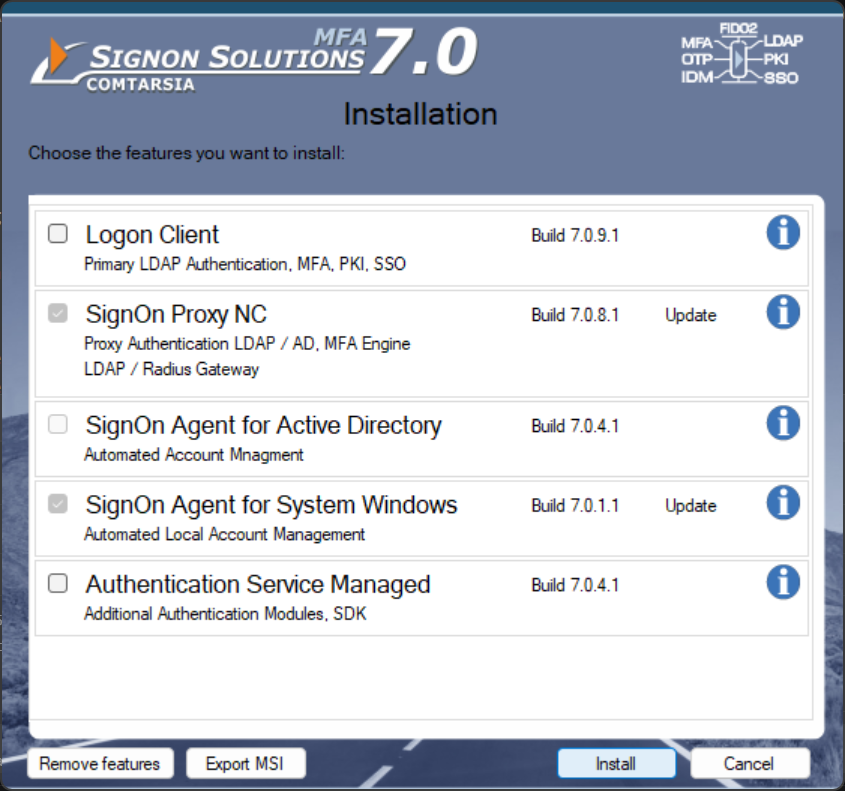
- Run
SOS70-7.0.X.1.exeas administrator and accept the license agreement. - Select the feature SignOn Agent for System Windows (Automated Local Account Management). It can be selected only on member servers and standalone servers. The Comtarsia Web Management is installed with it.
- On the settings page, keep Add firewall exception selected. The installer then creates the inbound firewall rule Comtarsia SignOn Agent for System Windows 7.0 for the SignOn Agent program. Without this option, you must allow TCP port 2005 for the SignOn Proxy yourself.
- Click Install.
After the first installation:
- The profile
SOSProfile 421exists with the default configuration. - The BeforeSync variable
AllProxyVarswith the source%Proxy:*%exists. It makes the data sent by the SignOn Proxy available to the SignOn Agent (see Variables in the SignOn Agent). - The evaluation license key
Evaluation.key424is installed. - The service is running.
- A shortcut to the Web Management is in the Start menu.
Continue with the Quick start.
2.3 Installing from MSI
Installing the MSI package directly is useful for software distribution. On the feature selection page of the bundle installer, Export MSI exports all MSI packages, the default configuration transforms (.mst) and the evaluation license keys to a folder.
Install the SignOn Agent with its default configuration:
msiexec /i Setup_soa_systemwin_70_x64.msi TRANSFORMS=Setup_soa_systemwin_70_DefaultConfig.mstUse the transform only for the first installation. For updates, install the new MSI without
TRANSFORMS.Copy
DemoKeys\Evaluation.key424from the export folder to%ProgramFiles%\Comtarsia\SignOn Solutions 7.0\key\, or install your license key there. Then restart the serviceComtSOA_SystemWin_70.Optional: install the Web Management with
Setup_WEBMGMT_70_x64.msi.Allow TCP port 2005 for the SignOn Proxy, e.g.:
netsh advfirewall firewall add rule name="Comtarsia SignOn Agent for System Windows 7.0" dir=in action=allow program="%ProgramFiles%\Comtarsia\SignOn Solutions 7.0\bin\ComtSOA_SystemWin.exe" enable=yes
Note: The MSI package does not check the server role. Install it only on member servers and standalone servers. It does not upgrade SignOn Solutions 2012/2016 either. Upgrade from these versions with the bundle installer (see Upgrading from SignOn Solutions 2012 and 2016).
2.4 File system structure
The installation uses the folder C:\Program Files\Comtarsia\SignOn Solutions 7.0 with these subdirectories:
| Directory | Description |
|---|---|
bin |
The SignOn Agent program ComtSOA_SystemWin.exe |
cert |
TLS certificates (agent.pem, ca.pem) |
doc |
Manuals |
key |
License keys |
log |
Log files, e.g. ComtSOA_SystemWin.log |
2.5 Updating
Run the bundle installer of the new version. Installed products are updated automatically. The configuration and a license key that you installed in the Web Management are kept.
2.6 Upgrading from SignOn Solutions 2012 and 2016
Run the bundle installer of SignOn Solutions 7.0 on the server. It replaces the old version:
- It uninstalls the SignOn Agent for System Windows 2012/2016 and installs version 7.0.
- It moves the installation directory to
%ProgramFiles%\Comtarsia\SignOn Solutions 7.0and adjusts the certificate and log paths in the configuration. - It converts the group mapping list of the old version (
SOSProfile 421\GroupMapping) to the format of version 7.0 (SOSProfile 421\Group\groupMapping). IfgroupMappingalready exists, it is not changed. The old key remains as a backup, but the SignOn Agent no longer reads it. - With Add firewall exception, it removes the firewall rule of the old version and creates the rule for version 7.0.
- On a domain controller or a workstation, the installer does not upgrade. It shows a message and exits without changing the system.
License keys of version 2012/2016 are not valid for version 7.0. After the upgrade, the SignOn Agent runs with the evaluation key until you install a license key for version 7.0 (see License keys).
Upgrade only with the bundle installer. The SignOn Agent 7.0 reads the group mapping only from
Group\groupMapping. Without the conversion, no mapping applies. With Remove from group enabled, users then lose their mapped group memberships at their next logon.
After the upgrade, check in the Web Management:
- Groupmapping tab: the mapping list is complete.
- Variables tab, BeforeSync: the variable
AllProxyVarswith the source%Proxy:*%exists. If it is missing, create it (see Variables in the SignOn Agent). - Licence: a valid key is installed.
2.7 Uninstalling
Open Settings → Apps → Installed apps (or Programs and Features), select Comtarsia SignOn Solutions 7.0 and click Uninstall. Select SignOn Agent for System Windows.
- The service, the program and the firewall rule are removed. The configuration remains.
- The Web Management is removed only if no SignOn Proxy and no other SignOn Agent remains installed.
- When you remove the last SignOn Solutions product, the installer offers further options: Remove Configuration (all
SOSProfilekeys andSignOn Solutions 7.0in the registry), Remove Licence Keys, Remove Certificates and Remove Logs.
The local accounts created by the SignOn Agent remain. Delete them manually if they are no longer needed. Their description starts with SERV_TMP_USER.
3. Quick start
The following steps set up a working configuration. The linked sections contain the details.
On the SignOn Agent server, in the Web Management (see Web Management login), Settings, profile SignOn Agent SystemWin:
- General tab: enter the IP address of every SignOn Proxy in the Accept list (see Security (TLS)).
- User tab: set Users to sync to SERV_TMP_USER only (see Recommendations).
- Groupmapping tab: enter the local group Users (on a German Windows: Benutzer) in Except groups, and map your directory groups to local groups (see Group mapping).
- Click Apply.
On the SignOn Proxy, in its Web Management, Settings, profile SignOn Proxy:
- Domains tab: add a sync domain with the domain version SignOn Agent for System Windows and an agent with the host name of the server and port 2005 (see Sync domain).
- Variables tab, BeforeSync: give the variable
__GROUP__the transmit destination SignOn Agent (see Data for the SignOn Agent). - Click Apply.
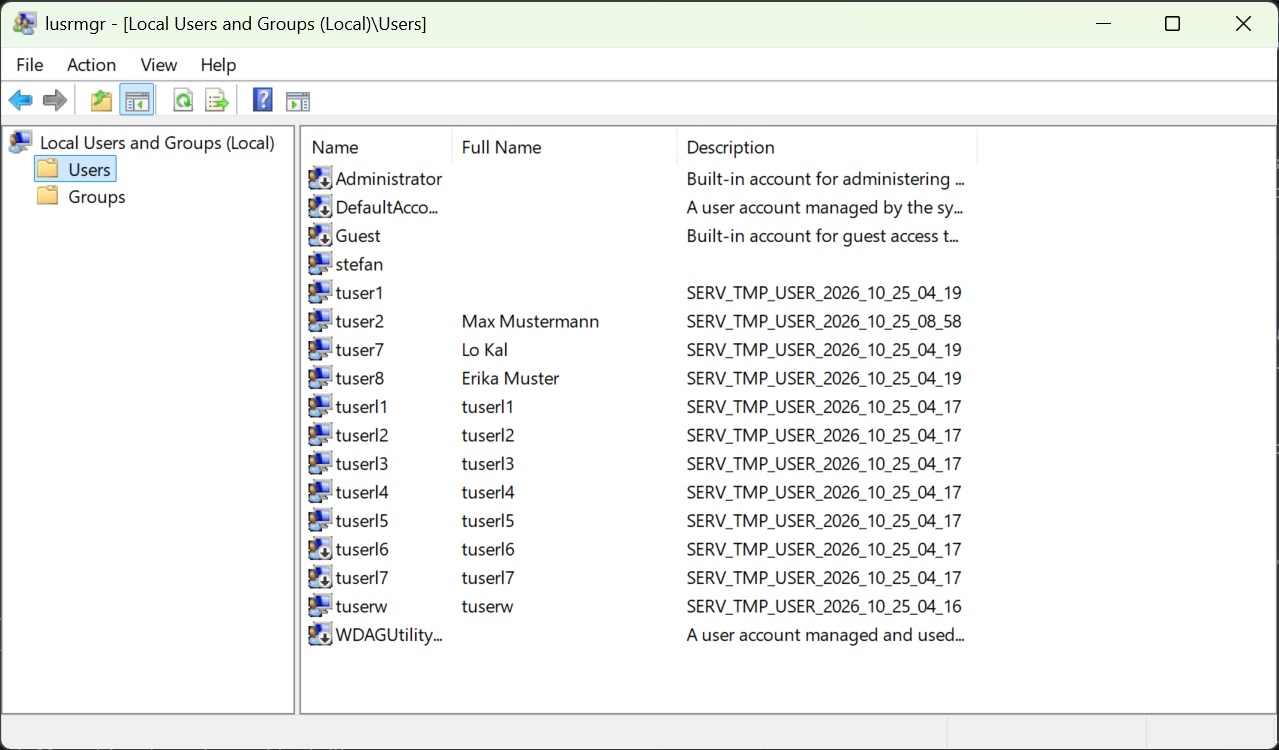
Test: log on with a directory user. The local account appears in Computer Management → Local Users and Groups with the description SERV_TMP_USER_<date>_<time>. The log of the SignOn Agent (Web Management, Logs) shows the synchronization.
4. SignOn Proxy configuration
The SignOn Proxy decides which users are synchronized to which servers. Configure it in the Web Management of the SignOn Proxy: Settings, profile SignOn Proxy.
4.1 Sync domain
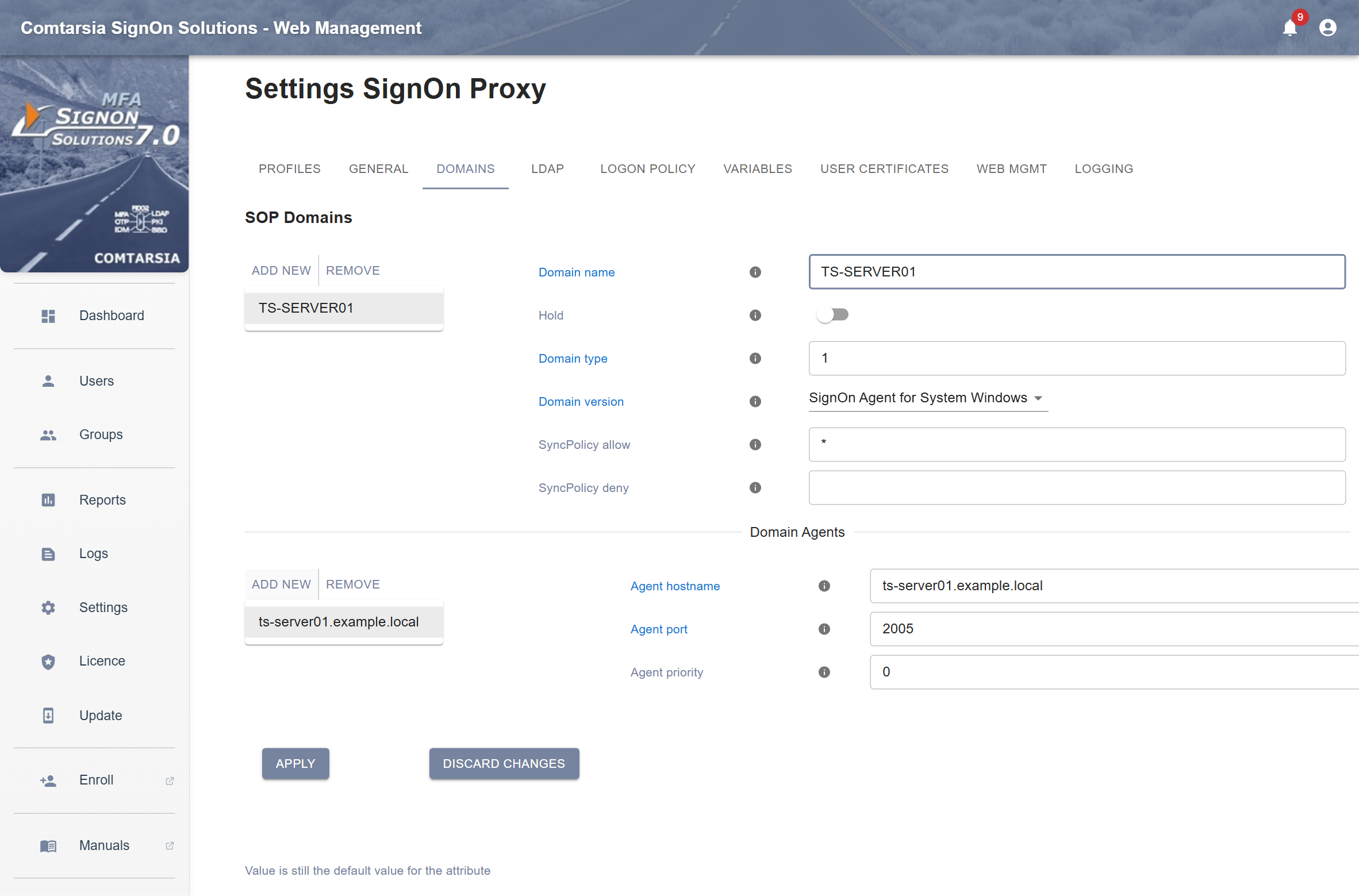
Each server with a SignOn Agent for System Windows has its own local accounts. Create one sync domain per server on the Domains tab (Add new):
| Field | Value |
|---|---|
| Domain name | A name of your choice, e.g. the server name. It is shown in the sync status and is used in the Transmit destination domains of variables. |
| Hold | Off. When on, the domain is skipped. |
| Domain type | Informational. Recommended: 1 (Windows standalone). |
| Domain version | SignOn Agent for System Windows |
| SyncPolicy allow | Directory groups whose members are synchronized to this server, separated by commas. A * at the end of a name matches all groups that start with the text before it. * alone matches all users, also users without groups. Default: *. |
| SyncPolicy deny | Directory groups whose members are not synchronized to this server. SyncPolicy deny has priority over SyncPolicy allow. |
Under Domain Agents, add the SignOn Agent (Add new):
| Field | Value |
|---|---|
| Agent hostname | DNS name or IP address of the server |
| Agent port | 2005. A new entry has the port 2002 (SignOn Agent for Active Directory). Change it. |
| Agent priority | 0 |
Add exactly one agent per sync domain. With several agents, the SignOn Proxy distributes the requests among them, which is not useful for the local accounts of different servers.
4.2 Data for the SignOn Agent
The SignOn Proxy sends the user name and the password with every request. All further data is sent only if it is configured as a variable with the transmit destination SignOn Agent:
- Directory groups: The variable
__GROUP__(Variables tab, BeforeSync, source%LDAPUser:__GROUP__[]%) contains the groups of the user. Enable the transmit destination SignOn Agent 0x8. Without it, the group mapping of the SignOn Agent receives no groups. If the variable does not exist, create it with this source. - Further attributes, e.g. the display name for the full name of the account: create a variable, e.g.
displayNamewith the source%LDAPUser:displayName%, and enable the transmit destination SignOn Agent. In the SignOn Agent, the value is available as%Proxy:displayName%, and with the default variableAllProxyVarsalso as%displayName%(see Variables in the SignOn Agent).
If Transmit destination domains is filled, the variable is sent only to the listed sync domains. Leave it empty to send the variable to all sync domains.
The SignOn Proxy transmits at most 20 such variables per sync domain to the SignOn Agent. __GROUP__ is not counted.
5. Web Management
5.1 Web Management login
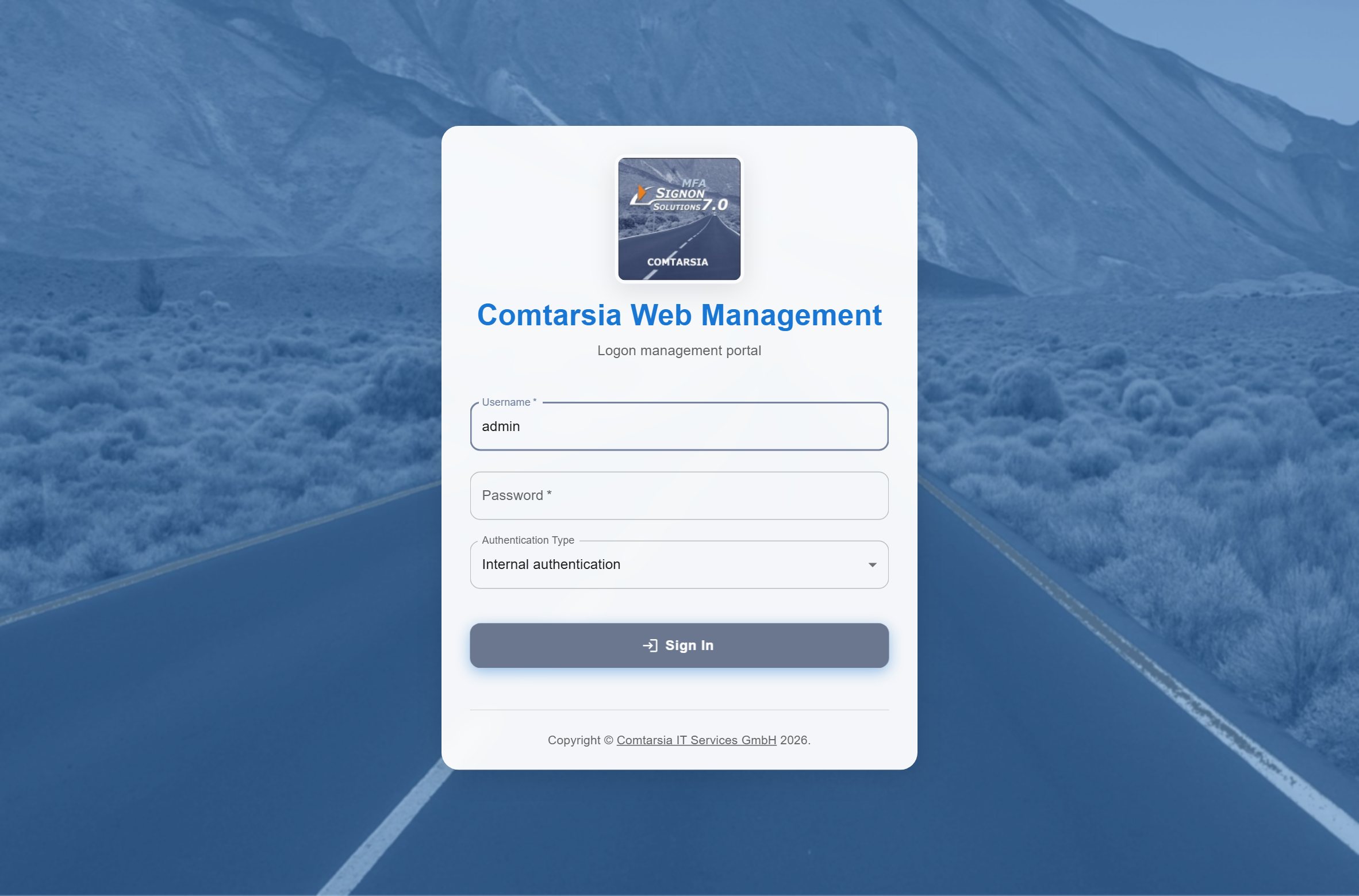
On the SignOn Agent server, start Comtarsia Web Management from the Start menu. It opens http://localhost:5002/ in the default browser. The Web Management also listens on port 5003 for HTTPS.
Sign in with Windows authentication and an account of the local Administrators group. The other authentication types and the HTTPS configuration are described in the SignOn Proxy 7.0 manual.
5.2 Dashboard
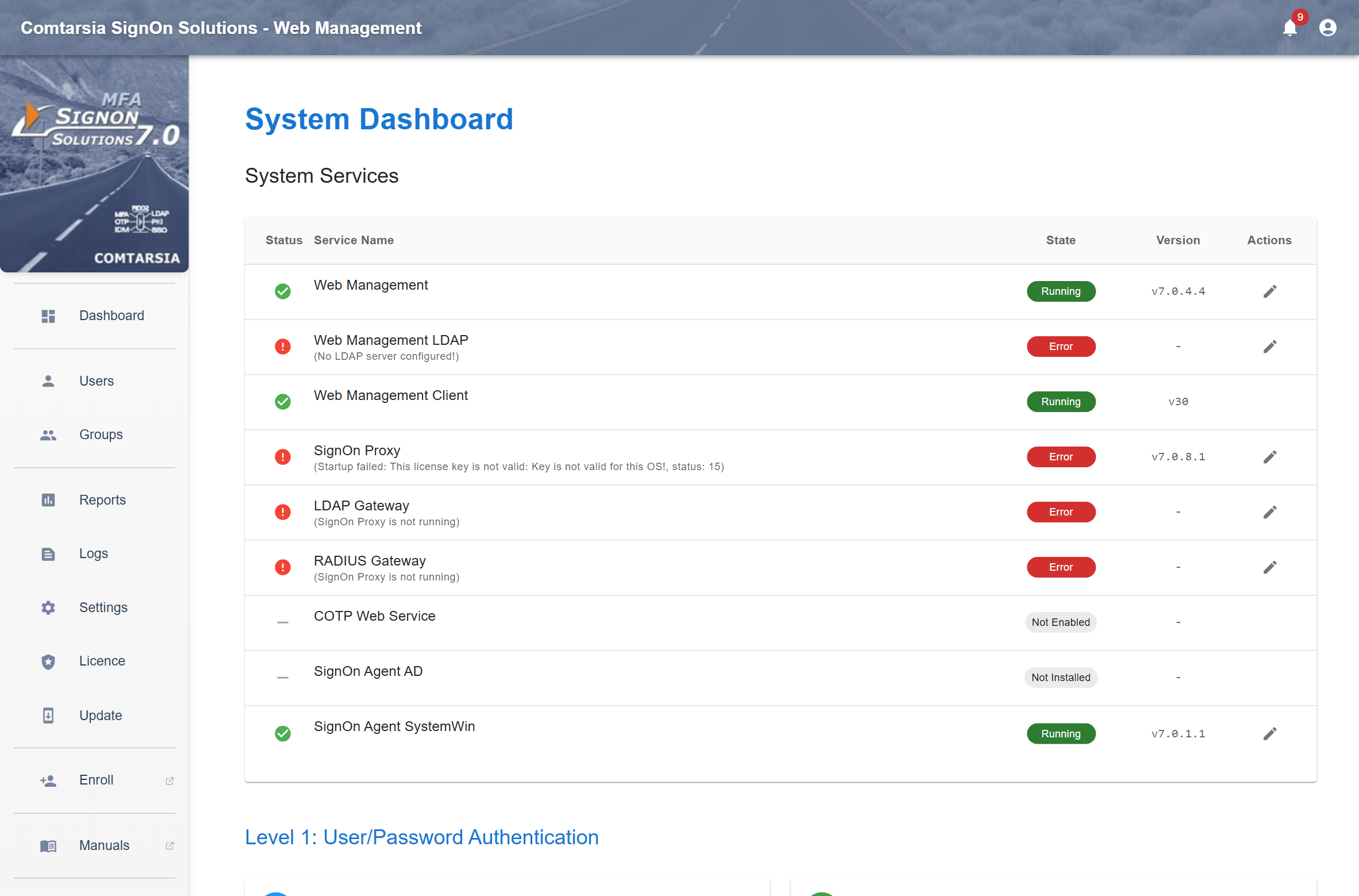
After the login, the Dashboard shows the status of all Comtarsia services of this server. The row SignOn Agent SystemWin shows the state of the service (e.g. Running with version and build date, Error with the reason, Not installed). If the service could not start, e.g. because of an invalid license key, the error is shown here. The pencil icon opens the settings of the SignOn Agent.
The notification icon on the top right shows important events, like critical service errors or available software updates.
5.3 Settings
Under Settings, Profiles tab, select SignOn Agent SystemWin (registry SOSProfile 421). The Profiles tab also shows the state of the Comtarsia services of this server. The configuration of the SignOn Agent is spread across the tabs General, User, Groupmapping, Variables and Logging. All fields are described in the following chapters.
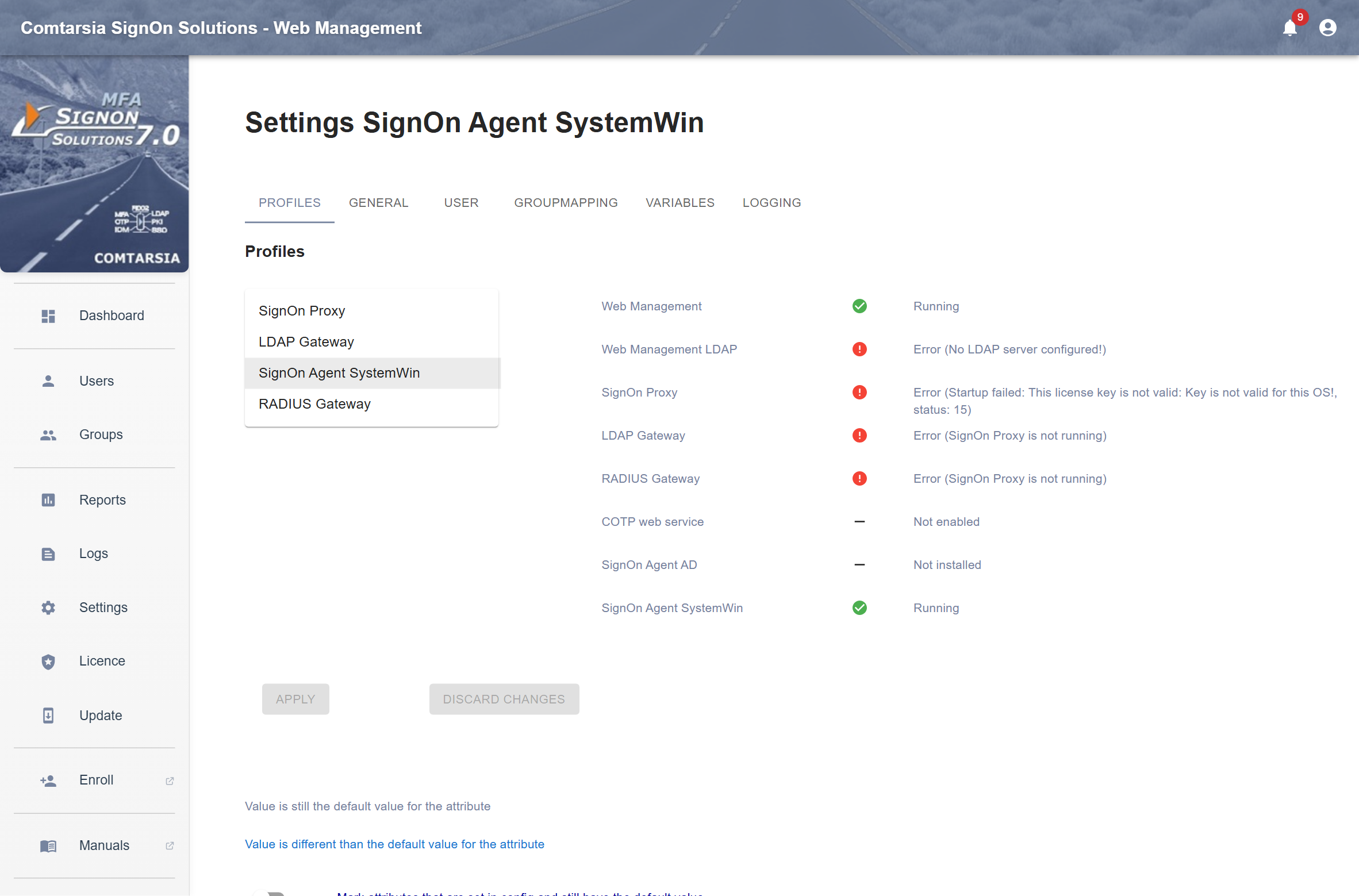
- The info icon next to each field shows a description of the value and its default value.
- The color of the field name shows the state of the value:
- Grey: The value is still its default value.
- Light blue: The value is changed from the default value.
- Dark blue: The value is set in the configuration, but equal to the default value. Such values can be removed with the checkbox Cleanup all default values on apply at the bottom of the page.
- Apply writes the changes to the registry and restarts the Comtarsia services of this server, among them the SignOn Agent. Synchronizations that are running at this moment are interrupted.
- Discard Changes discards all changes since the last Apply.
5.4 License keys
Under Licence, tab SignOn Agent SystemWin, the Web Management shows the installed license key, e.g. its validity and the number of licensed accounts.
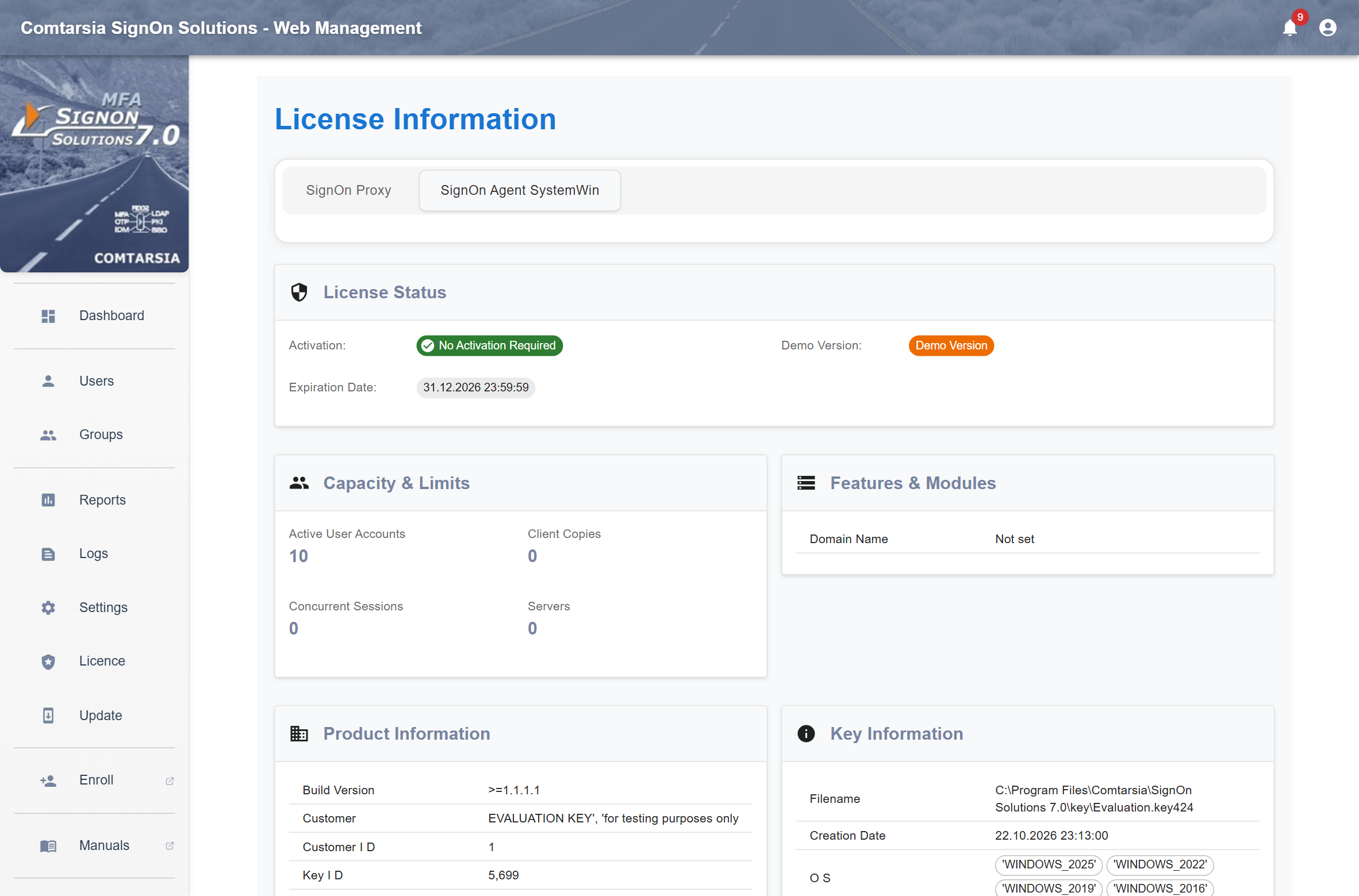
To install a license key:
- Click Load a License Key and select the key file (
*.key424). - The Web Management checks the key and shows its data. Click Install, or Install & Activate for a key that requires activation.
The key file is copied to the key directory, and the SignOn Agent is restarted. Licensing is described in Licensing.
5.5 Logs
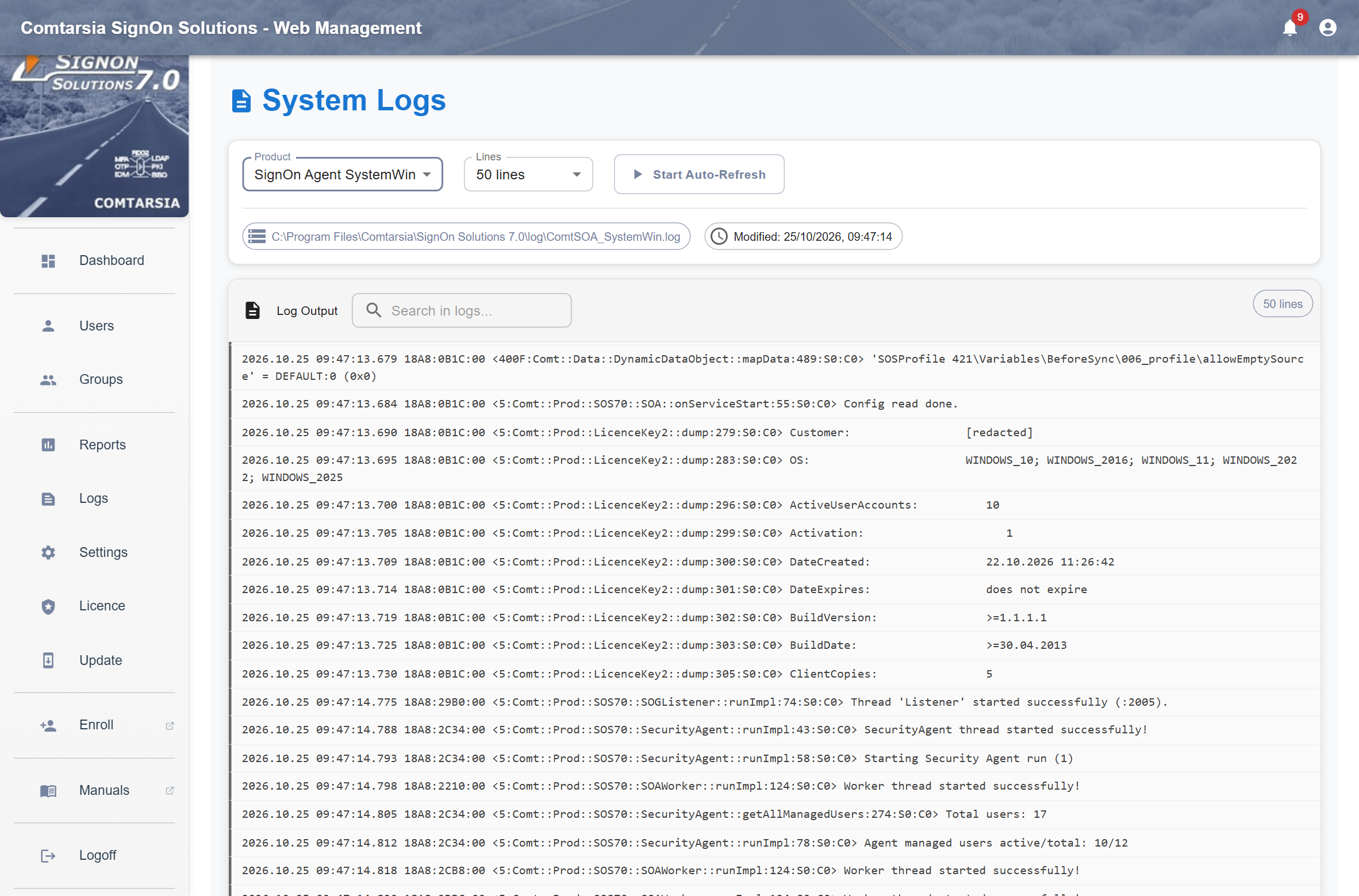
Under Logs, select the product SignOn Agent SystemWin. The Web Management shows the end of the log file ComtSOA_SystemWin.log and updates it while new lines are written.
6. General settings
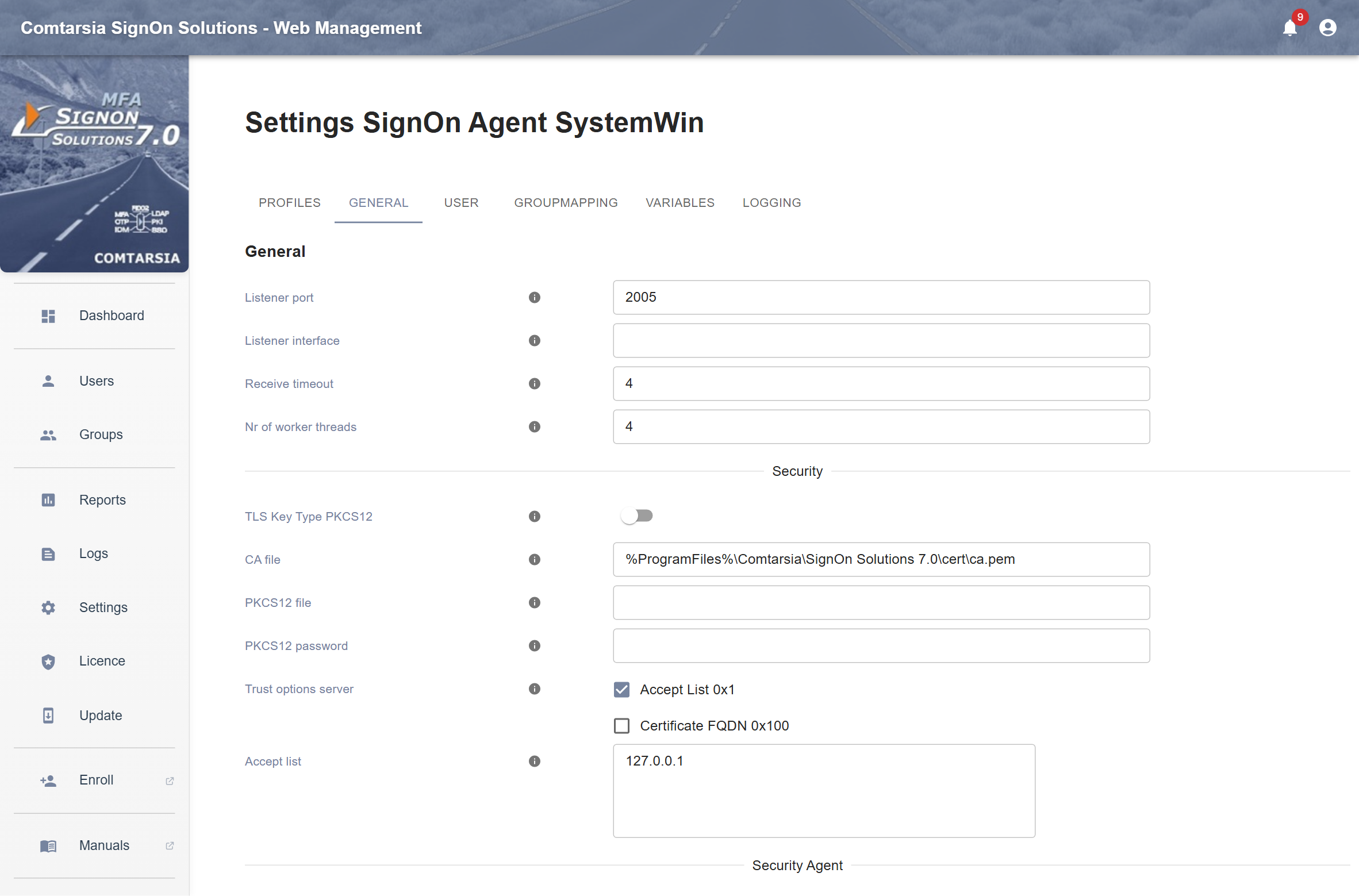
The General tab contains the listener, the TLS configuration and the Security Agent.
All registry values in this and the following chapters are relative to HKEY_LOCAL_MACHINE\SOFTWARE\Comtarsia\SOSProfile 421.
6.1 Listener
| Field | Registry value (SignOnAgent\…) |
Default | Description |
|---|---|---|---|
| Listener port | listenerPort |
2005 |
TCP port for the requests of the SignOn Proxy. Must match the Agent port in the sync domain of the SignOn Proxy. |
| Listener interface | listenerInterface |
empty | IP address of the network interface to listen on. Empty: all interfaces. |
| Receive timeout | rcvTimeout |
4 |
Receive timeout in seconds |
| Nr of worker threads | nrOfWorkerThreads |
4 |
Number of requests that are processed in parallel |
6.2 Security (TLS)
The SignOn Proxy and the SignOn Agent communicate over TLS and authenticate each other with certificates. Each side checks the certificate of the other side against its CA file.
| Field | Registry value (SignOnAgent\…) |
Default | Description |
|---|---|---|---|
| TLS Key Type PKCS12 | tlsKeyType |
Off (0) |
Off: The key and the certificate of the SignOn Agent are read from PEM files (tlsKeyFile and tlsCertFile, both …\cert\agent.pem by default; registry only). On (1): They are read from the PKCS12 file. |
| CA file | tlsCAFile |
%ProgramFiles%\Comtarsia\SignOn Solutions 7.0\cert\ca.pem |
CA certificates (PEM) used to verify the certificate of the SignOn Proxy |
| PKCS12 file | tlsPkcs12Name |
empty | PKCS12 file (.pfx/.p12) with key and certificate. Used when TLS Key Type PKCS12 is on. |
| PKCS12 password | tlsPkcs12Password |
empty | Password of the PKCS12 file. The Web Management stores it encrypted. |
| Trust options server | trustOptionsServer |
0x1 |
Accept List 0x1: Only the IP addresses in the accept list may connect. Certificate FQDN 0x100: The common name (CN) of the SignOn Proxy certificate must match the DNS name of the connecting SignOn Proxy (reverse lookup of its IP address). |
| Accept list | acceptList |
127.0.0.1 |
IP addresses of the SignOn Proxies that may connect, one per line. The address must match exactly. The default allows only a SignOn Proxy on the same server. |
Further values, registry only:
Registry value (SignOnAgent\…) |
Default | Description |
|---|---|---|
tlsMinProtocolVersion |
0x303 |
Minimum TLS version: 0x303 = TLS 1.2 |
tlsCiphers |
ALL:!SHA |
OpenSSL cipher list |
tlsCADir |
empty | Directory with additional CA certificates |
Certificates: The certificates installed with the product are default certificates, the same for every installation. For production use, replace them on the SignOn Proxy and on the SignOn Agent with certificates of your own CA.
6.3 Security Agent settings
| Field | Registry value (SignOnAgent\Modules\System\Security\…) |
Default | Description |
|---|---|---|---|
| Enable Security Agent | enableSecurityAgent |
Off | Disables (and optionally deletes) accounts that have not been synchronized for a given time |
| Start time (hh:mm) | startTime |
01:00 |
Time of day (local time of the server, 24-hour format) of the daily run |
| Disable user period (days) | disableUserPeriod |
7 |
An account is disabled when it has not been synchronized for this number of days. |
| Delete inactive users | deleteDisabledUsers |
Off | Inactive accounts are also deleted. |
| Delete user period (days) | deleteUserPeriod |
7 |
An account is deleted this number of days after the end of the disable period. |
The chapter Security Agent describes how it works.
7. User settings
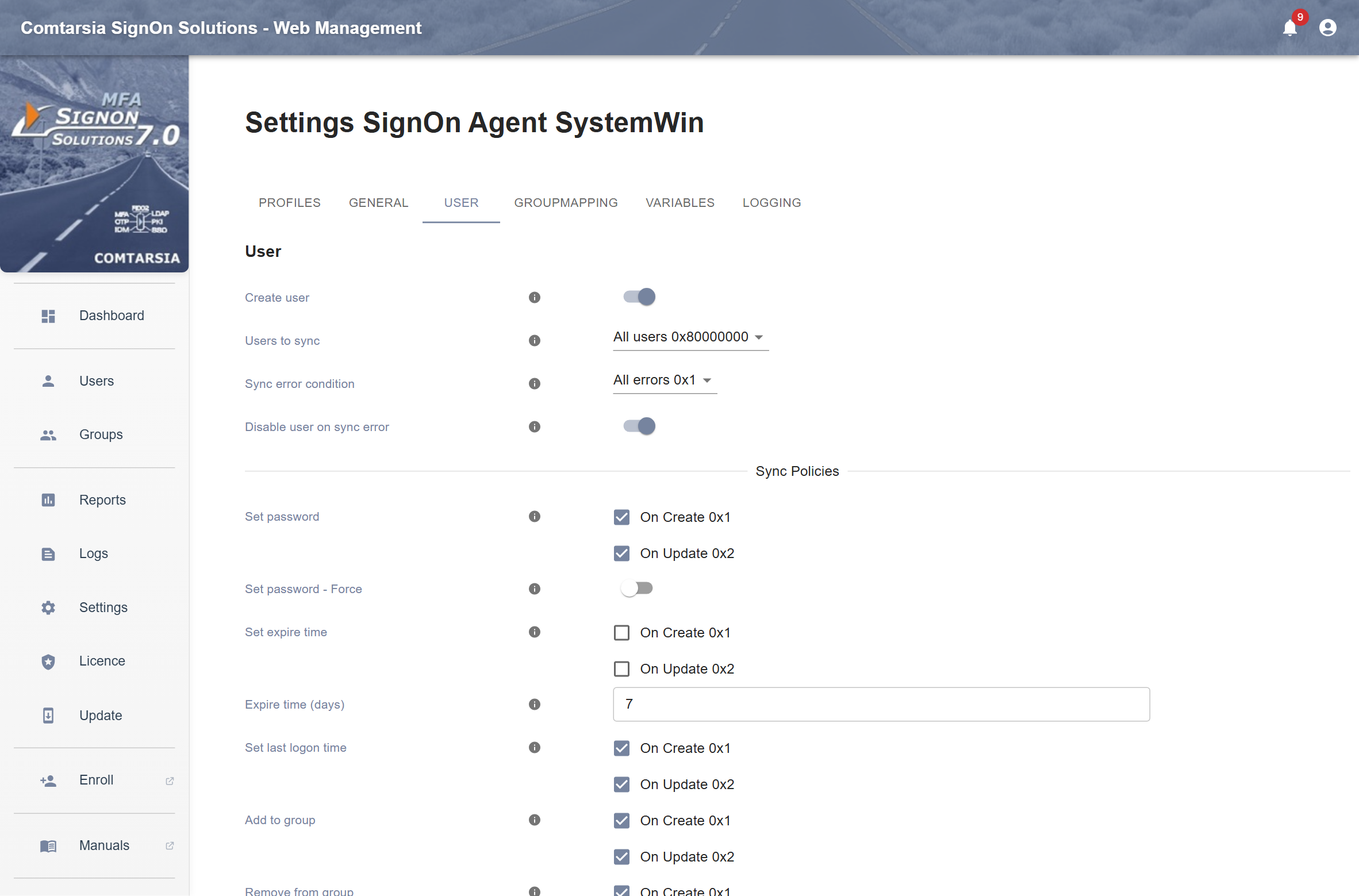
The User tab defines which accounts the SignOn Agent manages and what it does at a synchronization.
Fields with the options On Create and On Update apply separately to accounts that the SignOn Agent creates in this synchronization (On Create) and to accounts that already exist (On Update). In the registry, they are bit masks: 1 = On Create, 2 = On Update, 3 = both.
| Field | Registry value (SignOnAgent\Modules\System\User\…) |
Default | Description |
|---|---|---|---|
| Create user | createUser |
On | Creates the local account if it does not exist. Off: only existing accounts are updated. |
| Users to sync | usersToSync |
All users (0x80000000) |
SERV_TMP_USER only (0x1): Only accounts whose description starts with SERV_TMP_USER are updated, i.e. accounts that the SignOn Agent created. Other accounts with the same name as a directory user are left unchanged. All users (0x80000000): Existing local accounts with the same name as a directory user are updated as well and get the description SERV_TMP_USER…. See Recommendations. |
| Sync error condition | syncErrorPolicy |
All errors (1) |
Logon user fails (0): Only a failed check of the password counts as a sync error. All errors (1): Errors when setting group memberships or attributes count as sync errors as well. |
| Disable user on sync error | disableUserOnSyncError |
On | Disables the account when a sync error occurs. |
7.1 Sync policies
| Field | Registry value (SignOnAgent\Modules\System\User\…) |
Default | Description |
|---|---|---|---|
| Set password | setPassword |
On Create, On Update | On Create: The password is set when the account is created. On Update: The password is set when the logon with the transmitted password fails, i.e. after the password was changed in the directory. |
| Set password - Force | forceSetPassword |
Off | Sets the password at every synchronization. Not needed normally. |
| Set expire time | setExpireTime |
Off | Sets the expiration date of the account to the time of the synchronization plus Expire time (days). With On Update, the date moves forward with every logon, and accounts that are not used expire. |
| Expire time (days) | daysUserAccountExpires |
7 |
Days until the account expires, see Set expire time |
| Set last logon time | setLastLogonTime |
On Create, On Update | Writes the time of the synchronization into the description of the account: SERV_TMP_USER_yyyy_mm_dd_hh_mm. The Security Agent uses this time stamp. If the option is off for a case, the description is set to SERV_TMP_USER without a time stamp, and the Security Agent no longer processes the account. |
| Add to group | addUserToGroup |
On Create, On Update | Adds the user to the local groups that result from the group mapping. |
| Remove from group | removeUserFromGroup |
On Create, On Update | Removes the user from all local groups that are not in the result of the group mapping, except the groups in Except groups. |
| Create homedir | createHomeDir |
Off | Creates the directory Home dir path after a successful synchronization if it does not exist, and gives the user full access to it. |
| Home dir path | createHomeDirPath |
%homeDirectory% |
Path of the home directory, see Home and profile directories |
| Check homedir ACL - On Update | alwaysCheckACL |
Off | Checks the permission of the user on an existing home or profile directory at every synchronization and adds it if it is missing. Off: The permission is set only when the directory is created. |
| Create profile | createProfile |
Off | Creates the directory Profile path like Create homedir. |
| Profile path | createProfilePath |
%profilePath% |
Path of the profile directory, see Home and profile directories |
| Enable account | enableAccount |
On Create, On Update | Enables the account if it is disabled. |
| Unlock account | unlockAccount |
On Create, On Update | Unlocks the account if it is locked out. |
7.2 Home and profile directories
- The path can contain variables (see Source syntax).
%USERNAME%is replaced by the user name. For environment variables, use the namespace ServiceEnv, e.g.%ServiceEnv:SystemDrive%. - Examples:
C:\Homes\%USERNAME%,%ServiceEnv:SystemDrive%\Profiles\%USERNAME%,\\fileserver\homes$\%USERNAME% - The SignOn Agent creates only the last directory of the path. The parent folder must exist.
- The default
%homeDirectory%refers to the variablehomeDirectory, which must be provided, e.g. by the SignOn Proxy (see Data for the SignOn Agent). Enter a fixed path if you do not provide this variable. - Set the permissions on the parent folder (inheritable NTFS permissions and share permissions) manually. The SignOn Agent grants the user full access to the new directory only.
- The SignOn Agent only creates the directory. To enter it as the home folder of the account, export the variable
home_dir(see Export to the local account).
8. Group mapping
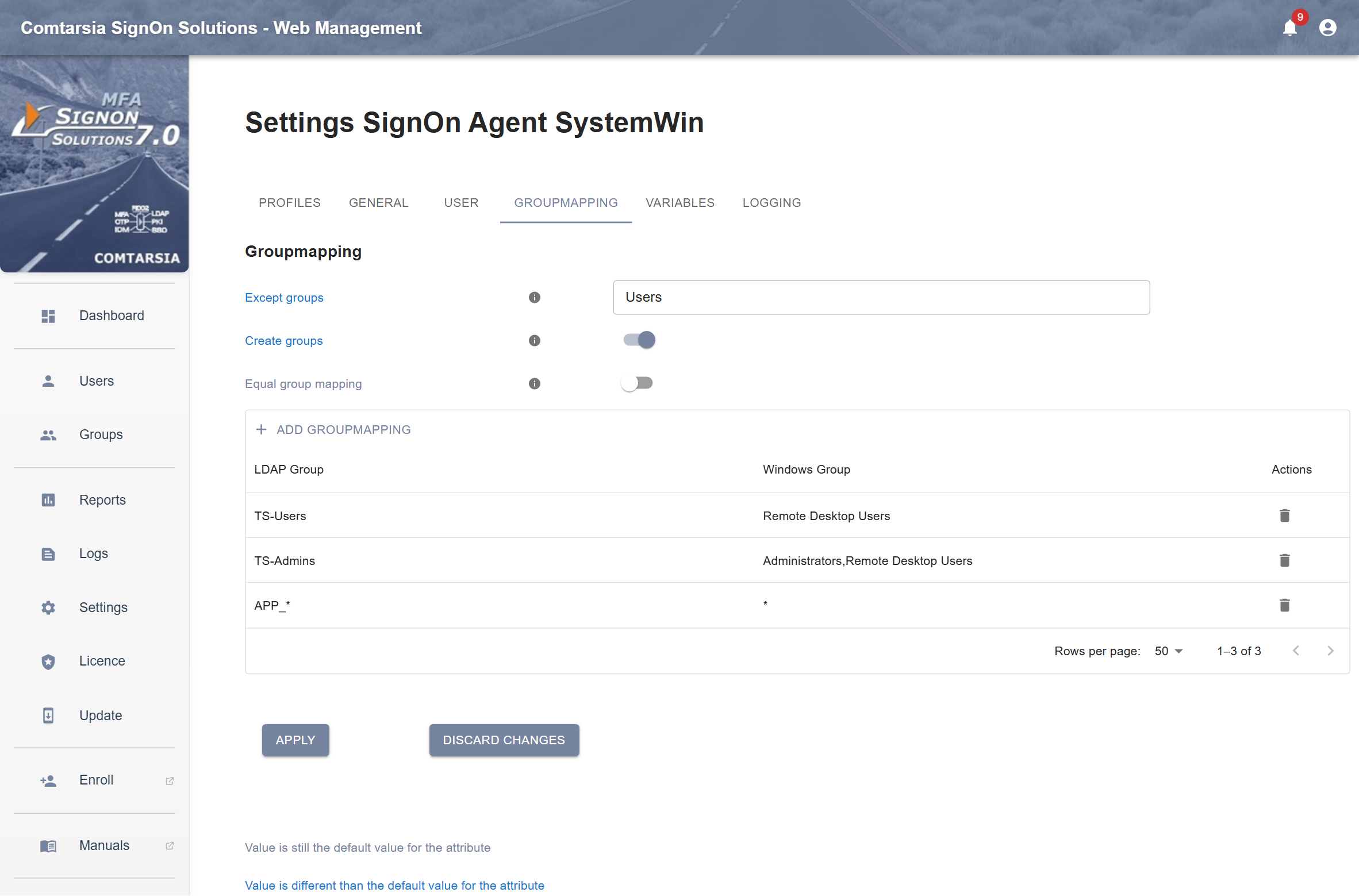
The Groupmapping tab defines the local groups of the user.
| Field | Registry value (Group\…) |
Default | Description |
|---|---|---|---|
| Except groups | exceptGroups |
empty | Local groups that the SignOn Agent never changes, separated by commas. The user is neither added to nor removed from these groups. A * at the end of a name matches all groups that start with the text before it. |
| Create groups | createGroups |
Off | Creates local groups that do not exist when the user is added to them. Off: The group is skipped and the skip is logged. |
| Equal group mapping | equalGroupMapping |
Off | On: Every directory group is mapped to the local group with the same name. Off: the mapping list applies. |
| Mapping list (LDAP Group / Windows Group, button Add Groupmapping) | groupMapping (REG_MULTI_SZ, one entry LDAP Group=Windows Group per line) |
empty | Used when Equal group mapping is off |
8.1 How the group mapping works
The input is the list of directory groups of the user, which the SignOn Proxy sends in the variable __GROUP__ (see Data for the SignOn Agent). The SignOn Agent determines the local target groups from it:
- A row with a group name in LDAP Group: If the user is a member of this directory group, the user is added to all local groups in Windows Group. Several local groups are separated by
,or;. Group names are compared case-insensitively. - A row with a
*at the end of LDAP Group, e.g.APP_*: Every directory group of the user that starts withAPP_is mapped to the local group with the same name. Enter*in Windows Group. Rows with an empty Windows Group are ignored. - Directory groups without a matching row are ignored.
Then the SignOn Agent compares the result with the current local group memberships of the account:
- It adds the user to target groups the user is not a member of yet (Add to group).
- It removes the user from local groups that are not target groups (Remove from group).
- Groups in Except groups are never changed.
Local group names: Use the local names of the groups. The names of the built-in groups depend on the language of Windows, e.g. Users / Benutzer, Remote Desktop Users / Remotedesktopbenutzer.
Example:
| LDAP Group | Windows Group |
|---|---|
TS-Users |
Remote Desktop Users |
TS-Admins |
Administrators,Remote Desktop Users |
APP_* |
* |
With Except groups = Users, a member of the directory groups TS-Users and APP_Finance becomes a member of Remote Desktop Users and APP_Finance. Its membership in Users is not changed. It is removed from all other local groups.
9. Variables
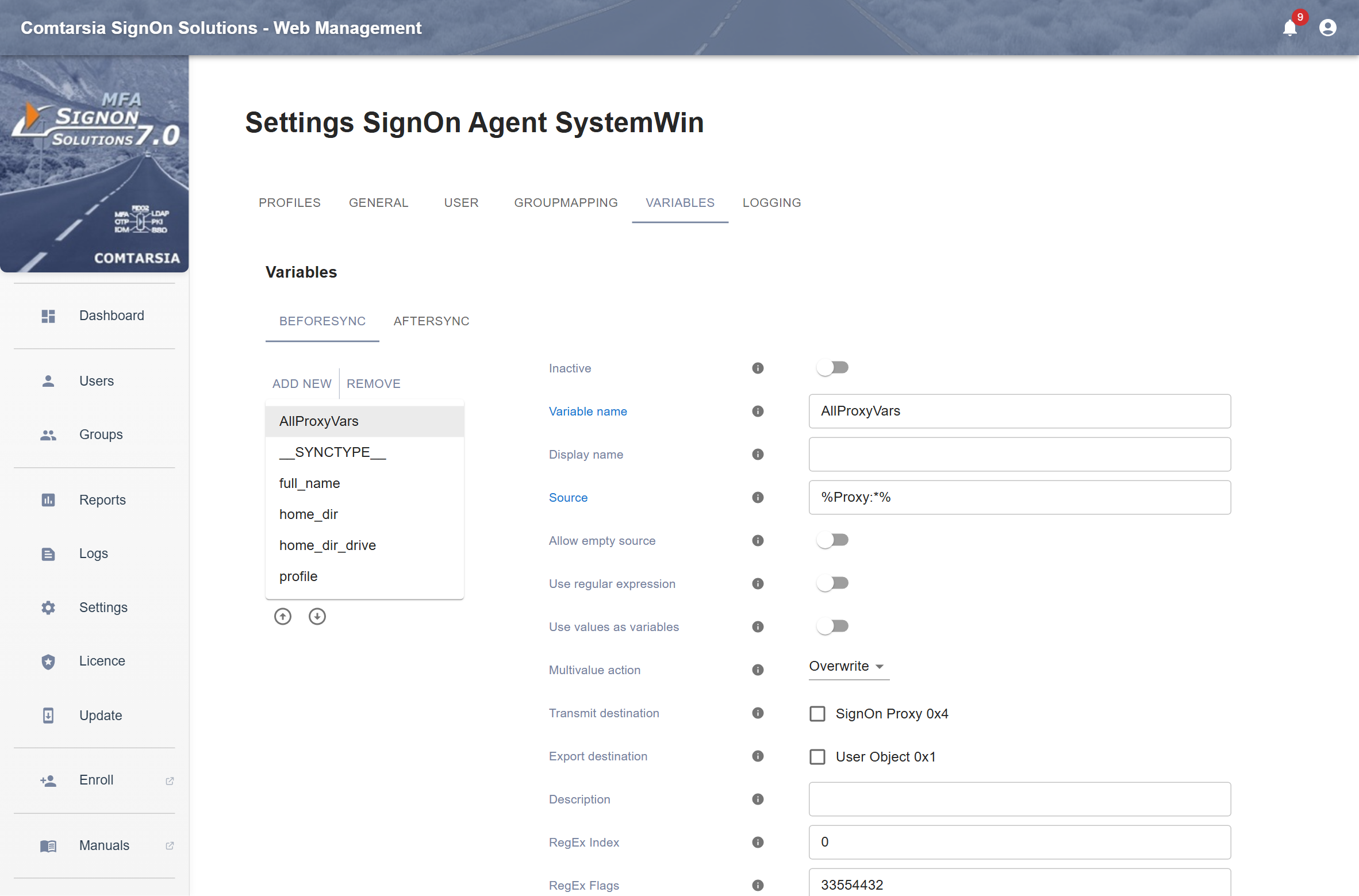
Variables transport data between the products of the SignOn Solutions and process it. In the SignOn Agent profile, the Variables tab has two sub-tabs for the two points in time:
- BeforeSync: before the synchronization of the account. Variables defined here can be exported to the account (Export destination).
- AfterSync: after the synchronization. Variables defined here can be sent back to the SignOn Proxy with the result (Transmit destination).
Use Add new and Remove to manage the variables. The variables of a tab are processed from top to bottom. Use the arrow buttons below the list to change the order.
9.1 Variables in the SignOn Agent
Variables have a namespace. In the SignOn Agent, the following variables are available:
| Variable | Namespace | Content |
|---|---|---|
__user__ |
Agent | User name. %USERNAME% and %USER% can be used as well. |
__password__ |
Agent | Password. It can only be used by the SignOn Agent itself and not in the source of other variables. |
__GROUP__ |
Agent | Directory groups of the user (multi-valued), the input of the group mapping. Values can be added or removed with BeforeSync variables named __GROUP__ (Multivalue action Add Value or Delete Value). |
workstation |
Agent | Name of the computer the user logs on at. Requires the variable AllProxyVars. |
__SYNCTYPE__ |
Agent | Special synchronization type, see Disabling accounts from the SignOn Proxy |
__syncResult__ |
Agent | AfterSync only: numeric sync status of the synchronization |
| all variables sent by the SignOn Proxy | Proxy | e.g. %Proxy:displayName% |
The variable AllProxyVars: On the first installation, the installer creates the BeforeSync variable AllProxyVars (registry Variables\BeforeSync\001_AllProxyVars) with the source %Proxy:*%. It copies all variables of the namespace Proxy into the namespace Agent, except variables whose names begin with __. Without it, workstation and all other values of the SignOn Proxy are available only in the form %Proxy:<name>%. Keep this variable as the first BeforeSync variable. Do not enable an Export destination or Transmit destination for it.
9.2 Source syntax
| Syntax | Meaning |
|---|---|
%name% |
Value of the variable name in the namespace Agent |
%Proxy:name% |
Value of a variable sent by the SignOn Proxy |
%ServiceEnv:name% |
Value of an environment variable of the SignOn Agent service |
%Registry:HKEY_LOCAL_MACHINE\path\valueName% |
Registry value (REG_SZ or REG_DWORD) |
%name[]% |
All values of a multi-valued variable. The source results in one value per value of the variable. Only one [] per source is supported. |
%Proxy:*% |
Copies all variables of the namespace (see Variables in the SignOn Agent). Must be the only content of the source. |
%% |
A literal % |
Text and variables can be combined, e.g. %givenName% %sn%.
9.3 Variable fields
| Field | Registry value (Variables\BeforeSync\NNN_Name\… or Variables\AfterSync\NNN_Name\…) |
Description |
|---|---|---|
| Inactive | hold |
The variable is not processed. |
| Variable name | name of the key NNN_Name |
Name of the resulting variable. NNN is the position in the list and is set by the Web Management. For an export, the name must be the name of the account attribute (see Export to the local account). |
| Display name | displayName |
Name in the list of the Web Management only |
| Source | source |
Value of the variable, see Source syntax |
| Allow empty source | allowEmptySource |
Creates the variable also when the source results in an empty value. Off: the variable is not created then. |
| Use regular expression | mappingType |
Applies Expression and Formatter to the resolved source. |
| Expression | expression |
Regular expression (Perl syntax). Can contain variables, which are replaced before the expression is applied. |
| Formatter | formatter |
Format of the result, e.g. $1 for the first group of the expression. Can contain variables. |
| RegEx Index | index |
Number of the match that is used if the expression matches several times. Usually 0 (first match), unless the expression cannot be made specific enough to match only once. |
| RegEx Flags | flags |
Options for the regular expression, see Regular expression flags. Default 0x2000000 (format_all). |
| Use values as variables | useValuesAsVariables |
Not used by the SignOn Agent. Leave it off. |
| Multivalue action | multivalueAction |
Overwrite: replaces an existing variable of the same name. Delete: deletes the variable. Delete Value: removes the resulting value from the variable. Add Value: adds the resulting value to the variable, e.g. a group to __GROUP__. |
| Transmit destination | transmitDestination |
SignOn Proxy 0x4: The variable is sent back to the SignOn Proxy with the result of the synchronization. There it is available in the namespace Agent. |
| Export destination | exportDestination |
User Object 0x1: The value is written to the attribute of the local account with the same name as the variable (BeforeSync, see Export to the local account). |
| Description | variableComment |
Comment |
9.4 Regular expression flags
RegEx Flags is a bit mask of the following values (Boost.Regex match_flag_type):
match_default           0
match_not_bol           0x00000001  /* first is not start of line */
match_not_eol           0x00000002  /* last is not end of line */
match_not_bob           0x00000004  /* first is not start of buffer */
match_not_eob           0x00000008  /* last is not end of buffer */
match_not_bow           0x00000010  /* first is not start of word */
match_not_eow           0x00000020  /* last is not end of word */
match_not_dot_newline   0x00000040  /* \n is not matched by '.' */
match_not_dot_null      0x00000080  /* '\0' is not matched by '.' */
match_prev_avail        0x00000100  /* *--first is a valid expression */
match_init              0x00000200  /* internal use */
match_any               0x00000400  /* don't care what we match */
match_not_null          0x00000800  /* string can't be null */
match_continuous        0x00001000  /* each grep match must continue uninterrupted from the previous one */
match_partial           0x00002000  /* find partial matches */
match_stop              0x00004000  /* stop after first match (grep) V3 only */
match_not_initial_null  0x00004000  /* don't match initial null, V4 only */
match_all               0x00008000  /* must find the whole of input even if match_any is set */
match_perl              0x00010000  /* use perl matching rules */
match_posix             0x00020000  /* use POSIX matching rules */
match_nosubs            0x00040000  /* don't trap marked subs */
match_extra             0x00080000  /* include full capture information for repeated captures */
match_single_line       0x00100000  /* treat text as single line and ignore any \n's when matching ^ and $ */

format_perl             0           /* perl style replacement */
format_default          0           /* ditto */
format_sed              0x01000000  /* sed style replacement */
format_all              0x02000000  /* enable all extensions to syntax */
format_no_copy          0x04000000  /* don't copy non-matching segments */
format_first_only       0x08000000  /* only replace first occurrence */
format_literal          0x20000000  /* treat string as a literal */
9.5 Export to the local account
A BeforeSync variable with the export destination User Object writes its value into the attribute of the local account that has the same name as the variable. The value is written only if it differs from the current value. The name is case-sensitive.
| Variable name | Attribute of the local account |
|---|---|
full_name |
Full name |
usr_comment |
User's comment (net user) |
home_dir |
Home folder: local path, or the network path with home_dir_drive |
home_dir_drive |
Home folder: drive letter for the network path, e.g. H: |
profile |
Profile path |
script_path |
Logon script |
workstations |
Workstations the user may log on at, separated by commas |
accountExpires |
Expiration date as seconds since 1970-01-01 00:00 UTC. Use Set expire time (see Sync policies) instead where possible. |
Do not export comment (the description, used by the SignOn Agent itself, see Managed accounts) or password.
Example: the full name of the account from the directory attribute displayName:
- SignOn Proxy, BeforeSync: variable
displayName, source%LDAPUser:displayName%, transmit destination SignOn Agent. - SignOn Agent, BeforeSync, after
AllProxyVars: variablefull_name, source%displayName%, export destination User Object.
10. Logging
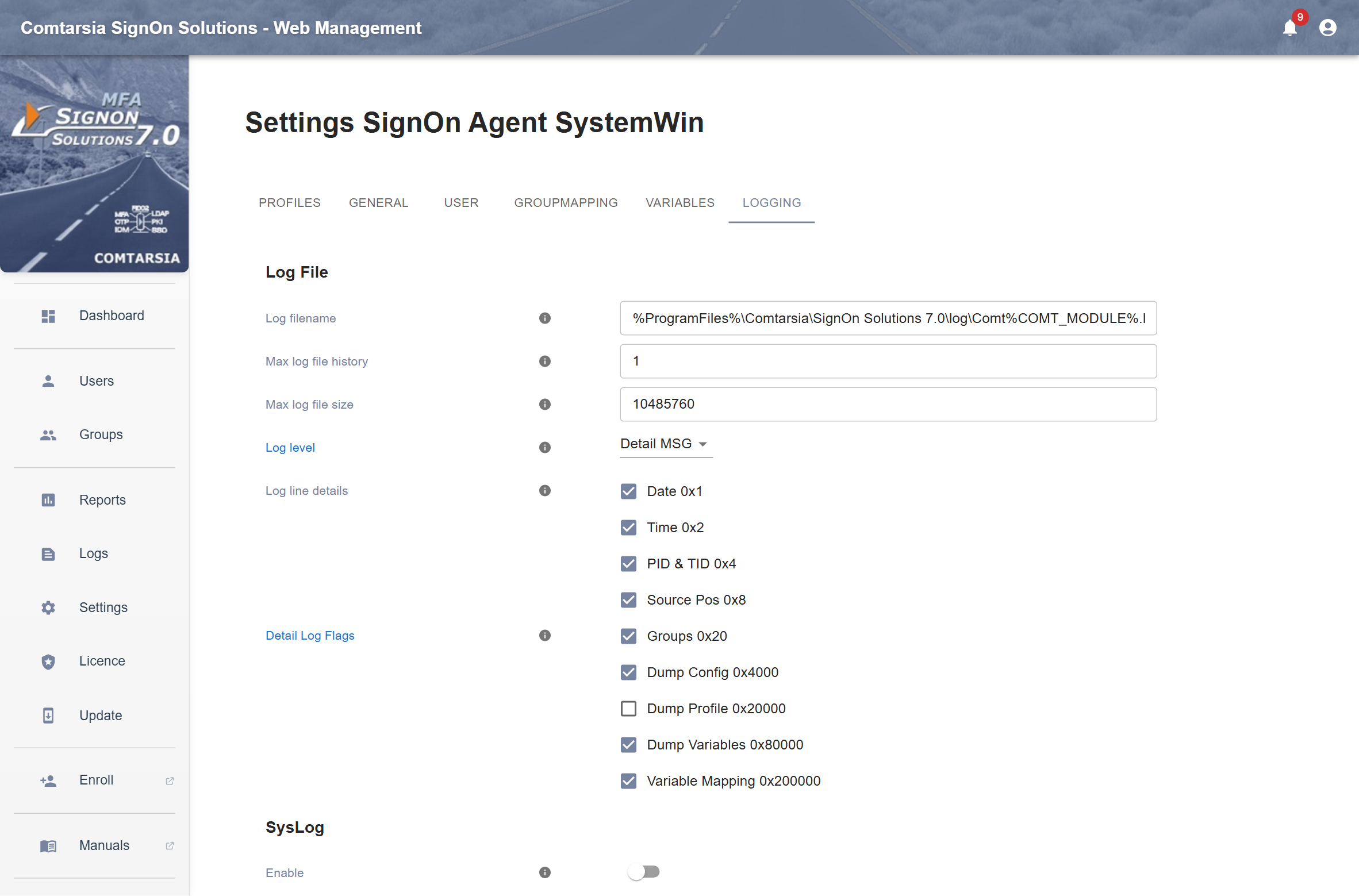
The Logging tab configures the log file and the forwarding to a syslog server. The log settings are read when the service starts.
10.1 Log file
| Field | Registry value (Log\…) |
Default | Description |
|---|---|---|---|
| Log filename | logFileName |
%ProgramFiles%\Comtarsia\SignOn Solutions 7.0\log\Comt%COMT_MODULE%.log |
Path of the log file. %COMT_MODULE% is replaced by SOA_SystemWin. |
| Max log file history | maxLogFileHistory |
1 |
Number of rotated log files that are kept |
| Max log file size | maxLogFileSize |
10485760 (10 MB) |
Size at which the log file is rotated |
| Log level | logLevel |
Info (4) |
None (0), Error (1), Exception (2), Warn (3), Info (4), Detail MSG (5). Each level contains the levels before it. The details of each synchronization are logged at Detail MSG. The detail log flags are independent of the log level. |
| Log line details | logDetails |
all | Date 0x1, Time 0x2, PID & TID 0x4 (process and thread ID), Source Pos 0x8 (position in the source code) |
| Detail Log Flags | logMask |
none | Additional output, independent of the log level: Groups 0x20 (group mapping), Dump Config 0x4000 (configuration at startup), Dump Profile 0x20000 (registry profile at startup), Dump Variables 0x80000 (all variables after BeforeSync and AfterSync), Variable Mapping 0x200000 (processing of each variable). Registry only: 0x10000 (certificate of the SignOn Proxy), 0x100000 (content of the requests). |
10.2 SysLog
| Field | Registry value (Log\SysLog\…) |
Default | Description |
|---|---|---|---|
| Enable | enable |
Off | Sends log messages to a syslog server as well |
| Log level | logLevel |
None (0) |
As for the log file |
| Syslog host | host |
empty | Name or IP address of the syslog server |
| Syslog facility | facility |
16 |
Syslog facility (16 = local0) |
| Log line details | logDetails |
none | As for the log file |
| Detail Log Flags | logMask |
none | As for the log file |
Syslog messages are sent with the identifier Comtarsia_SOASW70.
Passwords are not written to the log. They are shown as
???.
11. Synchronization
11.1 Managed accounts
The SignOn Agent marks the accounts it manages in their description (attribute Description):
SERV_TMP_USER_yyyy_mm_dd_hh_mm: time of the last synchronization (with Set last logon time)SERV_TMP_USER: without a time stamp
The description is the basis for Users to sync = SERV_TMP_USER only, for the Security Agent and for counting licenses. Do not change the description of managed accounts.
New accounts are created as normal local user accounts with the option Password never expires. Password changes are made in the directory.
11.2 Sequence of a synchronization
- The SignOn Proxy connects. The SignOn Agent checks the IP address (accept list) and the certificate of the SignOn Proxy.
- License check (see Licensing).
- The BeforeSync variables are processed.
- If
__SYNCTYPE__=USERDISABLE, the account is only disabled (see Disabling accounts from the SignOn Proxy). End. - The SignOn Agent looks for the local account.
- The account does not exist: It is created with the transmitted password and the description
SERV_TMP_USER(Create user). If Create user is off, the synchronization ends. - The account exists, its description does not start with
SERV_TMP_USER, and Users to sync is SERV_TMP_USER only: The account is not changed. The result is "not managed".
- The account does not exist: It is created with the transmitted password and the description
- Enable account, Unlock account.
- The password is checked with a network logon of the account. If the logon fails, the password is set (Set password), and the check is repeated. Set password - Force sets the password in any case.
- Group mapping (Add to group, Remove from group).
- Export of the BeforeSync variables to the account.
- Description with time stamp (Set last logon time).
- Expiration date (Set expire time).
- If the synchronization was successful: home and profile directory (Create homedir, Create profile).
- If a sync error occurred and Disable user on sync error is on: the account is disabled.
- The AfterSync variables are processed, and the result is sent to the SignOn Proxy.
11.3 Sync errors
The synchronization is successful when the password check (step 7) succeeds. Which further errors make the synchronization fail is set by Sync error condition (see User settings). Typical causes of sync errors:
- The password does not meet the local password policy, so the account cannot be created or the password cannot be set.
- The user name is not valid for a local account (see System requirements).
- The network logon of the account is not allowed on the server, e.g. by the user right Deny access to this computer from the network.
- Sync error condition = All errors: a group membership or an attribute could not be changed.
With Disable user on sync error, the account is disabled after a sync error. At the next successful synchronization, Enable account enables it again.
12. Security Agent
The Security Agent disables and deletes accounts that have not been synchronized for a given time, i.e. whose users have not logged on via the SignOn Proxy. Its settings are on the General tab (see Security Agent settings).
- It runs once when the service starts and then daily at the Start time.
- It processes all local accounts whose description has the form
SERV_TMP_USER_yyyy_mm_dd_hh_mm. It uses the time stamp as the time of the last synchronization. Accounts with the descriptionSERV_TMP_USERwithout a time stamp are not processed. - An account whose last synchronization is more than Disable user period days ago is disabled.
- With Delete inactive users, an account whose last synchronization is more than Disable user period + Delete user period days ago is deleted.
- When a disabled user logs on again, the next synchronization enables the account again (Enable account, On Update) and updates the time stamp.
Example with the defaults (7 and 7 days) and Delete inactive users on: An account is disabled 7 days and deleted 14 days after the last logon.
Requirements: Enable Security Agent is on, and Set last logon time is set for On Create and On Update (default).
Deleting accounts: A deleted account is created again at the next logon of the user, with a new security identifier (SID). Permissions on files and folders, e.g. on the home directory, still refer to the old SID and no longer apply to the new account. Choose a long Delete user period, or use only Disable user period and Set expire time.
13. Licensing
The license key (product number 424) defines how many active managed accounts the SignOn Agent may manage. Active managed accounts are enabled local accounts whose description starts with SERV_TMP_USER. Disabled accounts do not count.
- The SignOn Agent counts the accounts at the start of the service and at every run of the Security Agent. Accounts that it creates or takes over are added to the count immediately.
- When the limit is reached, the synchronization of a user that is not yet counted is rejected with a license error. The error is written to the log and to the Windows event log. Users that are already counted are synchronized as before.
- If the last count is older than one hour when the limit is reached, the SignOn Agent starts a new count, so that accounts disabled or deleted in the meantime are taken into account.
- To free licenses, disable or delete accounts that are no longer needed, e.g. with the Security Agent.
The installer installs the evaluation key Evaluation.key424, which is valid for a limited time. Install your license key in the Web Management (see License keys). If the license key is invalid or has expired, the service does not start. The Web Management shows the reason on the Dashboard and under Licence.
14. Disabling accounts from the SignOn Proxy
The SignOn Proxy can instruct the SignOn Agent to disable an account instead of synchronizing it. This is controlled by the variable __SYNCTYPE__:
- If the variable
__SYNCTYPE__in the namespace Agent has the valueUSERDISABLEafter BeforeSync, the SignOn Agent only disables the account. It does not set the password, group memberships or attributes. - Only managed accounts (description starts with
SERV_TMP_USER) are disabled. Other accounts are not changed. The result is "not managed".
Configuration:
- SignOn Proxy, Variables, BeforeSync: a variable
__SYNCTYPE__that results in the valueUSERDISABLEfor the users to be disabled, e.g. derived from a directory attribute or a group with a regular expression. Transmit destination SignOn Agent. If needed, limit it to the sync domains of the affected servers with Transmit destination domains. - SignOn Agent, Variables, BeforeSync: a variable
__SYNCTYPE__with the source%Proxy:__SYNCTYPE__%. This variable is required, becauseAllProxyVarsdoes not copy variables whose names begin with__.
Note:
- The variable
__SYNCTYPE__counts toward the 20 variables per sync domain (see Data for the SignOn Agent). - The account is disabled at every logon of the user as long as the SignOn Proxy sends
USERDISABLE. Once it no longer does, the next synchronization enables the account again (Enable account).
15. Recommendations
The default values are compatible with earlier versions. For new installations, we recommend the following settings:
- Users to sync = SERV_TMP_USER only. With All users, the SignOn Agent also takes over existing local accounts that have the same name as a directory user, e.g. Administrator: It overwrites their password and description, changes their group memberships according to the group mapping (with Remove from group also removing them from Administrators), and counts them as licensed accounts.
- Except groups: the group Users (local name, e.g. Benutzer on a German Windows). Windows adds every new account to Users. If Users is neither a target of the group mapping nor in Except groups, Remove from group removes the account from Users at the first synchronization, and local logon or logon via Remote Desktop can fail. Alternatively, map Users explicitly.
- Except groups: local groups that you manage manually. Otherwise Remove from group removes managed accounts from them at the next logon.
- Accept list with the IP addresses of all SignOn Proxies, and own certificates (see Security (TLS)).
- Password policy: local policy not stricter than the directory policy (see System requirements).
- Security Agent: disabling instead of deleting (see Security Agent).
16. Troubleshooting
For troubleshooting, set the Log level to Detail MSG and, if needed, enable the Detail Log Flags Groups and Dump Variables (see Log file). Click Apply, which restarts the service.
| Symptom | Cause and solution |
|---|---|
| The Dashboard shows an error, the service is stopped. | Often the license key is invalid or has expired. Check Licence and the log, and install a valid key (see License keys). |
| The SignOn Proxy reports a connection error or timeout for the domain. | Service not running, wrong host name or port in the sync domain (see Sync domain), or the firewall blocks TCP 2005. |
Log: Client <IP address> not in accept list. Closing connection |
Enter the IP address of the SignOn Proxy in the Accept list (see Security (TLS)). |
| Log: TLS handshake or certificate errors | The certificates of the SignOn Proxy and the SignOn Agent are not issued by a CA in the CA file of the other side, or the CN does not match with Certificate FQDN (see Security (TLS)). |
Log: Create user FAILED '<user>' with error 2245 |
The password does not meet the local password policy (see System requirements). |
Log: LogonUser failed with ... after the password was set |
The network logon of the account is not allowed on the server (see Sync errors), or the account is disabled or expired. |
Log: This user is not managed by the SignOn Agent! |
An account with this name exists without the description SERV_TMP_USER, and Users to sync is SERV_TMP_USER only (see User settings). Rename or delete the local account, or take it over deliberately. |
| Users cannot log on locally or via Remote Desktop after the first synchronization. | The account was removed from Users or Remote Desktop Users. Add these groups to Except groups or to the group mapping (see Recommendations). |
| The group mapping has no effect. | The SignOn Proxy does not send __GROUP__ (see Data for the SignOn Agent), or the names in the mapping list do not match. Check with the detail log flags Groups and Dump Variables. |
workstation or values of the SignOn Proxy are empty. |
The BeforeSync variable AllProxyVars (%Proxy:*%) is missing (see Variables in the SignOn Agent), or the SignOn Proxy does not send the variable (see Data for the SignOn Agent). |
Log: Licence error: Too many users |
The license limit is reached (see Licensing). |
17. Disclaimer
All pages are subject to copyright and may only be copied or integrated in own offers with the written permission of Comtarsia IT Services GmbH.
All rights reserved. Subject to change without notice.
Comtarsia IT Services GmbH does not give any assurance or guarantee for other websites to which this manual refers. If you access a website that is not operated by Comtarsia IT Services GmbH, it is an independent site beyond our control. This also applies if the site contains the Comtarsia logo. A link from this manual to another site does not mean that we identify ourselves with its content or support its use.